
Manual Digitizing
Sizing and hoops
Set a design's size, choose a hoop that fits, add your own hoop and see the design at real size.
A design has to fit inside the sewing area of the hoop. This page shows how to set the size and pick the hoop.
Set the size#
Select a shape (or ⌘A for everything) and open Dimensions in the left panel.
- Type a Width or Height in millimetres. Switch to inches with the Units buttons.
- Keep aspect ratio (the padlock) changes width and height together so the shape does not squash. Turn it off to stretch one side.
- Use Flip left-right, Flip top-bottom and Rotate 90° under the size boxes.
The top-left corner stays put when you resize.
Nothing selected? Auto-digitize has its own width and height boxes. They set the size of the next result.
Choose a hoop#
The hoop chip in the top bar and in the Hoop section shows the current hoop. Click it to open the picker.
- Search by brand, machine or hoop name.
- Recently used hoops come first.
- Smallest hoop that fits picks the smallest hoop that holds your design.
- Swap width and height rotates the hoop between landscape and portrait.
- Add my own… saves a custom hoop with your own width and height.
Lilo ships a library of real hoops. Where a size could not be confirmed it says so. Check the numbers against your own hoop.
What the frame shows#
- The hoop frame and its clamp are drawn around the sewing area.
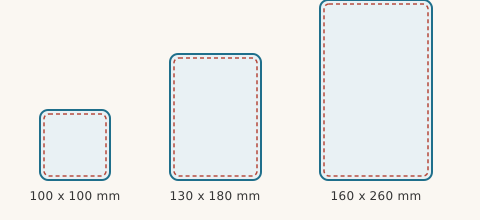
- The safe margin is a dashed line 5 mm inside the sewing area. Stitches close to the edge can hit the hoop.
- Rulers run along the top and left. Drag from a ruler to pull out a guide line.
- Placement guides show where a design usually goes: a left chest, a pocket, the centre of a hat. Pick one from the list.
See it at real size#
Actual size (⌘0) shows the design at its true size on your screen. Use Calibrate screen… once. You hold a ruler to the screen and Lilo learns how big a millimetre is on your display.
Fitting a design that is too big#
If the design sticks out, Lilo shows a warning in the tray. Pick a larger hoop or scale the design down. Do not squeeze a dense design into a small size without checking density. Read What the warnings mean.